The Alerts page allows you to view and manage Alert Rules that define conditions for triggering alerts.
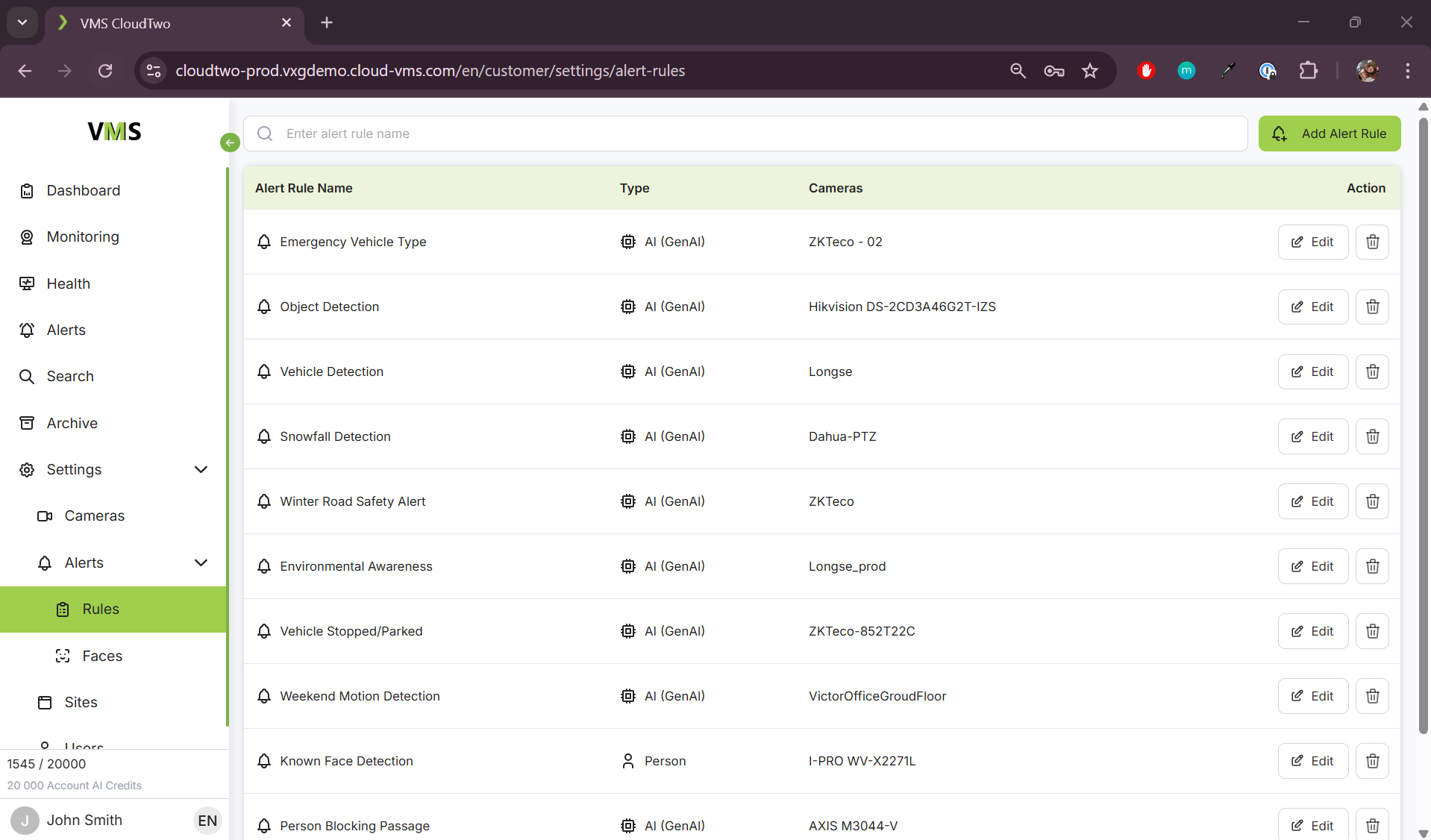
Alert Rule Triggers
Alerts can be triggered based on the following conditions:
1. Generative AI
-
Uses natural language queries to analyze scenes and detect concerns.
-
Example: “Is there a security concern?”
2. Cloud AI
-
Uses advanced AI recognition for detecting faces and objects.
-
Facial Recognition – Identifies known faces from the Face Library or detects unknown faces.
-
Object Recognition – Detects objects such as cars, humans, weapons, and more.
-
3. Camera Events
-
Triggers alerts based on camera-generated events, such as:
-
Motion Detection
-
Line Crossing
-
Adding a New Alert Rule
To create a new Alert Rule:
-
Click the "Add Alert Rule" button.
-
Enter the following details:
-
Rule Name
-
Site (location where the rule applies)
-
One or Multiple Cameras
-
Schedule (define when the rule should be active)
-
Recipient (email or phone number for notifications)
-
Trigger Type (motion detection or other camera events)
-
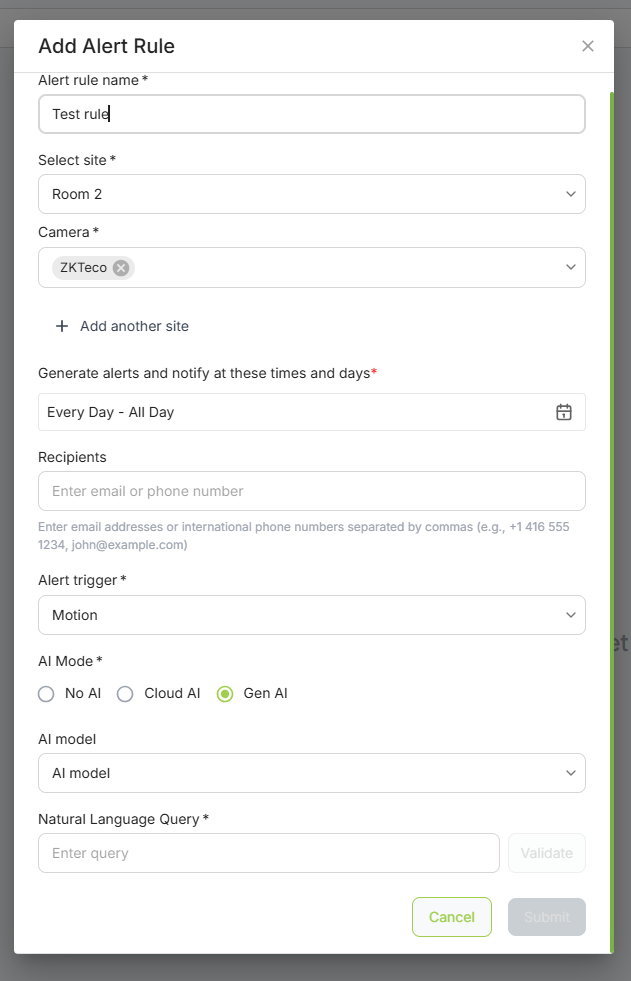
Configuring Alert Triggers
For Generative AI:
-
Check the "GenAI" checkbox.
-
You will be given an AI model select menu, a text input and a validate button
Validation
The validation is used to assist you in making a prompt with the highest chance of giving you expected results. You must validate your prompt before being able to create your alert rule.
How to write a valid prompt:
-
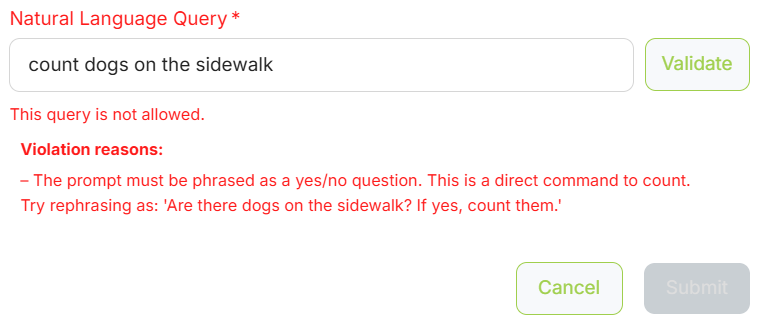
Make sure you phrase the prompt as a yes or no question. When the response is true, or yes, you can provide additional instructions. For example a valid prompt could be “Is any employee on the floor? If yes, count the ratio of employees to customers”
-
Don’t include anything that requires audio input or time ranges into your prompt. For example, an invalid prompt would be “How long has an employee been on the floor” or “Has there been any car sirens?”. Stick to single, visual questions like “Are there any delivery trucks?”.
Invalid prompt - If the prompt is deemed invalid, the system will give a reason and make a suggestion on how this prompt can be improved.
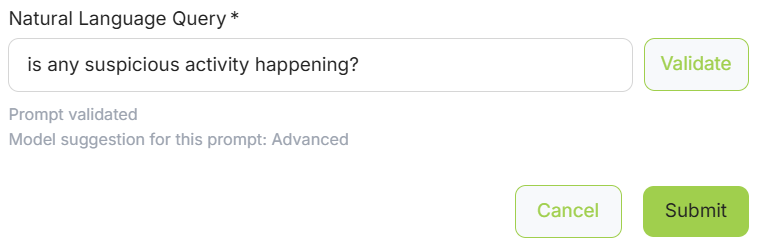
Valid prompt - It the prompt is deemed valid, the system will suggest the Advanced, Pro or Lite model based on the complexity of the prompt.
-
“Are any people on the sidewalk?” - Model suggestion for this prompt: Lite
-
“Are there any cars on the road? If yes, count them” - Model suggestion for this prompt: Pro
-
“Is any suspicious activity occurring?” - Model suggestion for this prompt: Advanced
AI Model Selection
The validation service will suggest a model to choose for this search either Advanced, Pro or Lite, however this is just a suggestion and you are able to choose any of the 3 models.
-
Advanced - used for more complex reasoning. Rather than simple object recognition, the advanced model is capable of making decisions based on more contextual and inferred information such as “Are there any health concerns?” or “Is there anything that looks like a suspected OSHA violation?”
-
Pro - used for less advanced reasoning, but with more in depth instructions or additional information requires ie. “Are there any cars on the road? If so, list their make and model”
-
Lite - used for simple queries and object counting. This model will return less information about the prompt and is best for simple prompts such as “Is there a car in front of the house?”
It is important to note that you can use any model of any validated prompt, but based on the complexity of the prompt and the level of the model you will get different levels of quality in the response.
For Cloud AI:
-
Check the "Cloud AI" checkbox and select one of the following detection types:
-
People
-
Objects
-
Cars
-
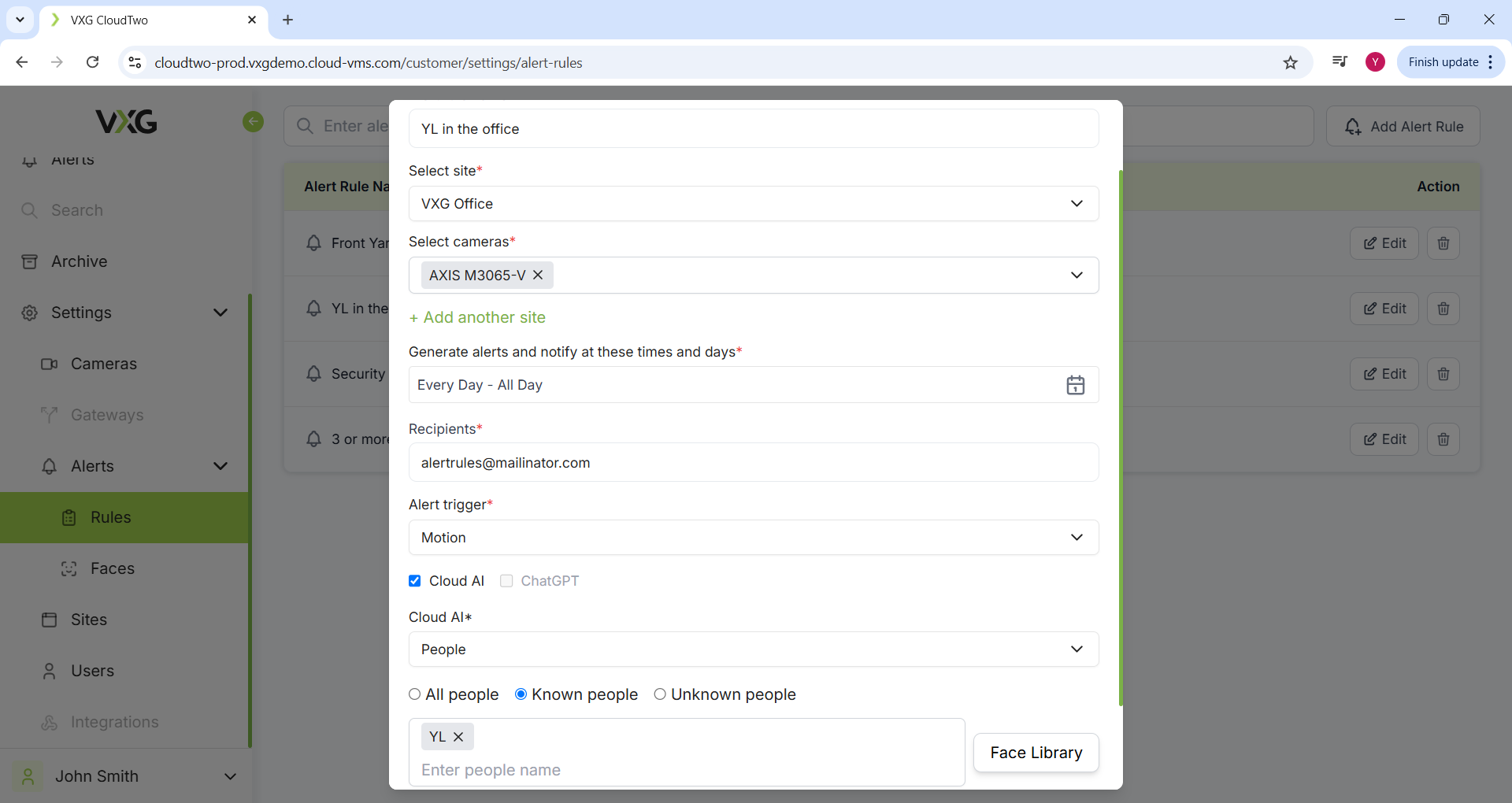
Once completed, the Alert Rule will be saved and activated based on the defined conditions.
Facial Recognition – Adding Known Faces to the Face Library
To use Facial Recognition for alerts, you must first add known faces to the Face Library.
Steps to Add a Face to the Face Library
-
Navigate to the Face Library section in Settings.
-
Click on the "Add Face" button.
-
Upload a clear image of the person's face.
-
Enter a name or label to identify the person.
-
Click Save to store the face in the library.
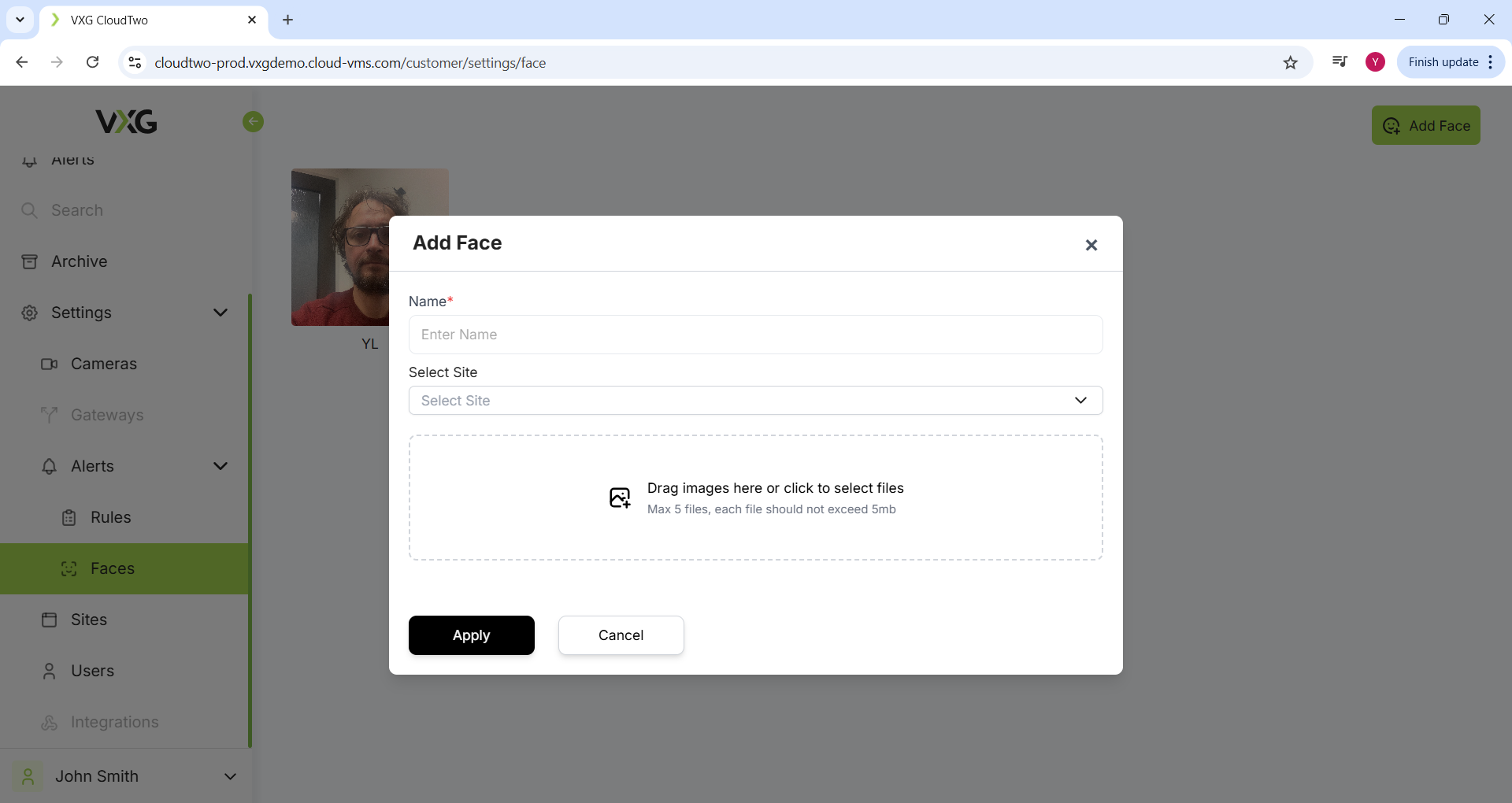
Once added, the system can recognize known faces and trigger alerts when they are detected.