It is a popular setup designed for testing purposes during the integration stage - to create an RTSP stream from the file, use it as a camera on VMS, and manually trigger events and following alerts for this camera.
Streaming RTSP from a file
Test video clips can be run in loops as RTSP streams via the Live555 server.
Examples of the video files that can be used:
https://dashboard.videoexpertsgroup.com/downloads/samples/test60.zip
Supervisor configuration example:
[program:video] command=ffmpeg -re -stream_loop -1 -i /home/ubuntu/video.mp4 -c:v copy -an -f rtsp rtsp://0.0.0.0:18554/video autostart=true autorestart=true stderr_logfile=/var/log/video.err.log stdout_logfile=/var/log/video.out.log
Adding stream to VMS
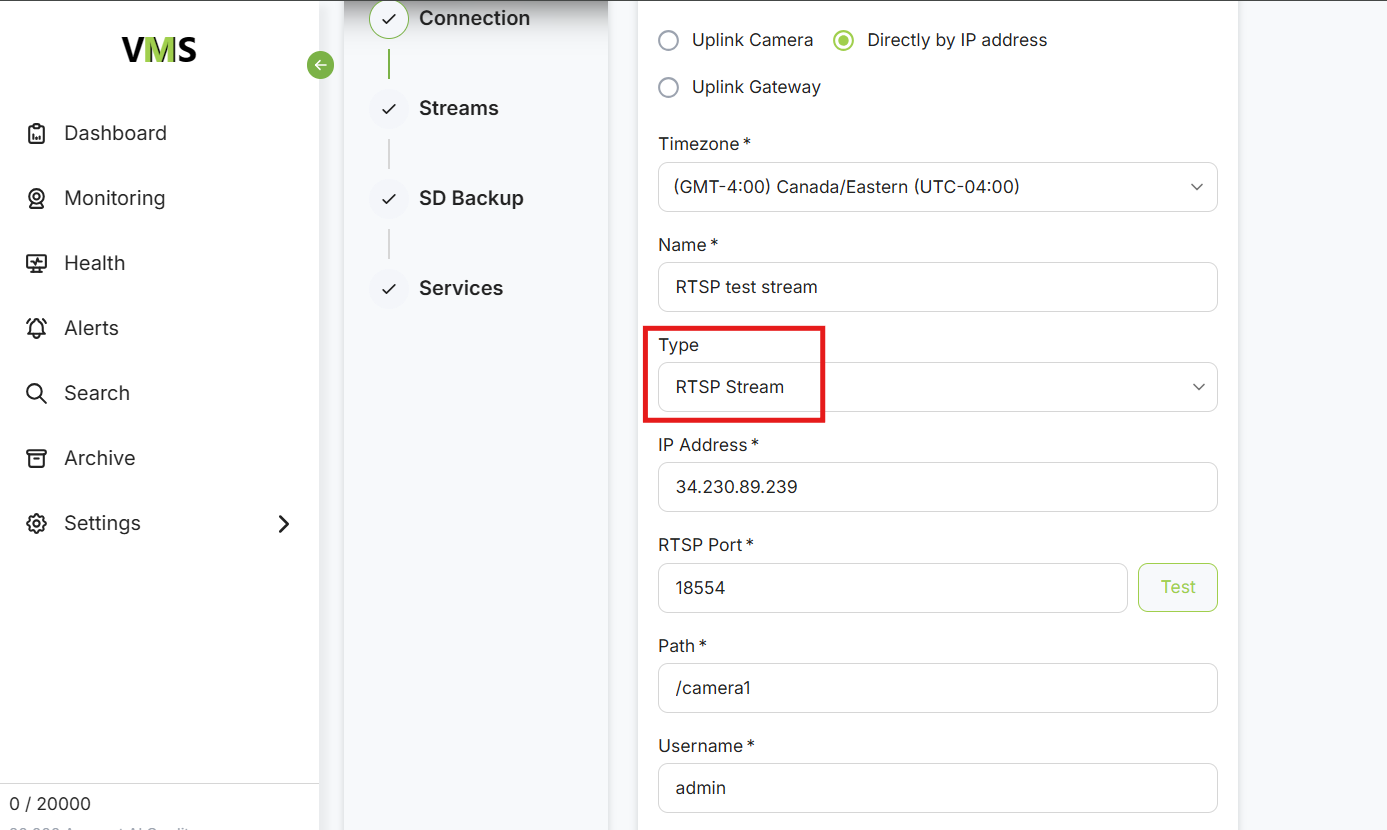
Once you have verified the RTSP streaming through VLC player, you can add the stream to the VMS. Choose the “Directly by IP address” option when adding it as a camera and switch to the “RTSP Stream” type. Enter the RTSP URL parts: IP, port, path, username & password (if applicable) and click “Next step”. Apply the subscription plan with AI credits.
Apply event alias to custom events
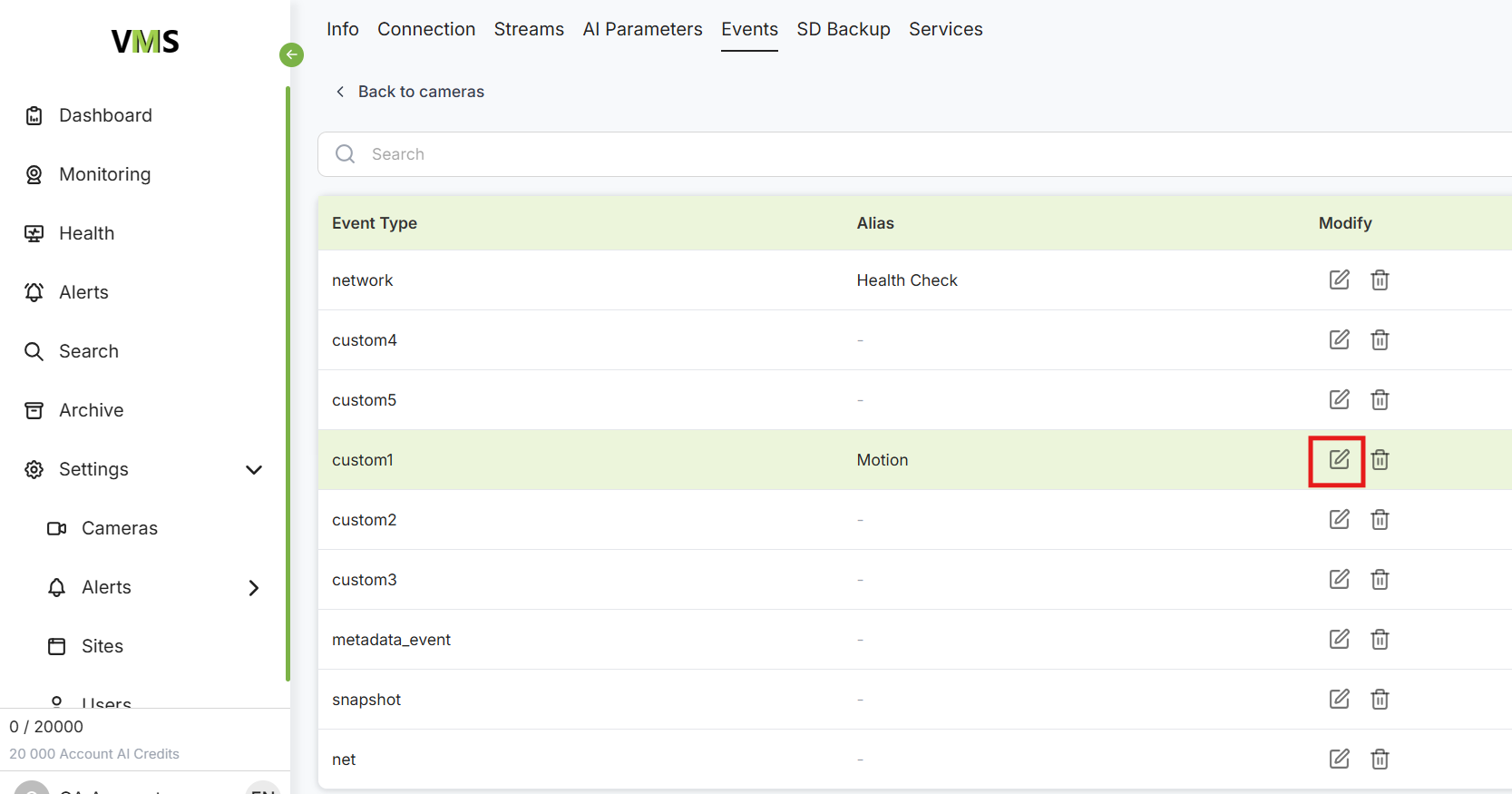
As the RTSP stream doesn’t generate any events, we will need to trigger the events manually and for that we will reuse “custom” events. They can be assigned to any event alias (motion, line crossing, etc.) and then they will be perceived by the VMS as the valid event coming from the camera.
Navigate to camera settings → Events → Modify the selected custom event → Apply the alias (motion in the example below)
This can also be done using the API (needs to be done once per customer (LKey)):
curl -X POST "https://{VMS_endpoint}/api/v3/aliases/" -H "accept: application/json" -H "Authorization: LKey <LKEY>" -H "Content-Type: application/json" -d "{ \"alias_name\": \"motion\", \"event_type\": \"custom1\"}"
Create the alert rule
Create the alert rule as usual by choosing the Alert trigger → Motion.
Triggering the event & alert
Now you can trigger the custom1 event through the API, it will act as a motion event and will generate the alert (in case of the positive result of the alert rule itself).
curl -X POST "https://{VMS_endpoint}/api/v2/cameras/{CAMID}/event_processing/events/custom1/trigger/" -H "accept: application/json" -H "Authorization: LKey <LKEY>" -H "Content-Type: application/json" -d "{ \"time\": \"2026-03-08T11:00:00\"}"