Skip table of contents

Search page

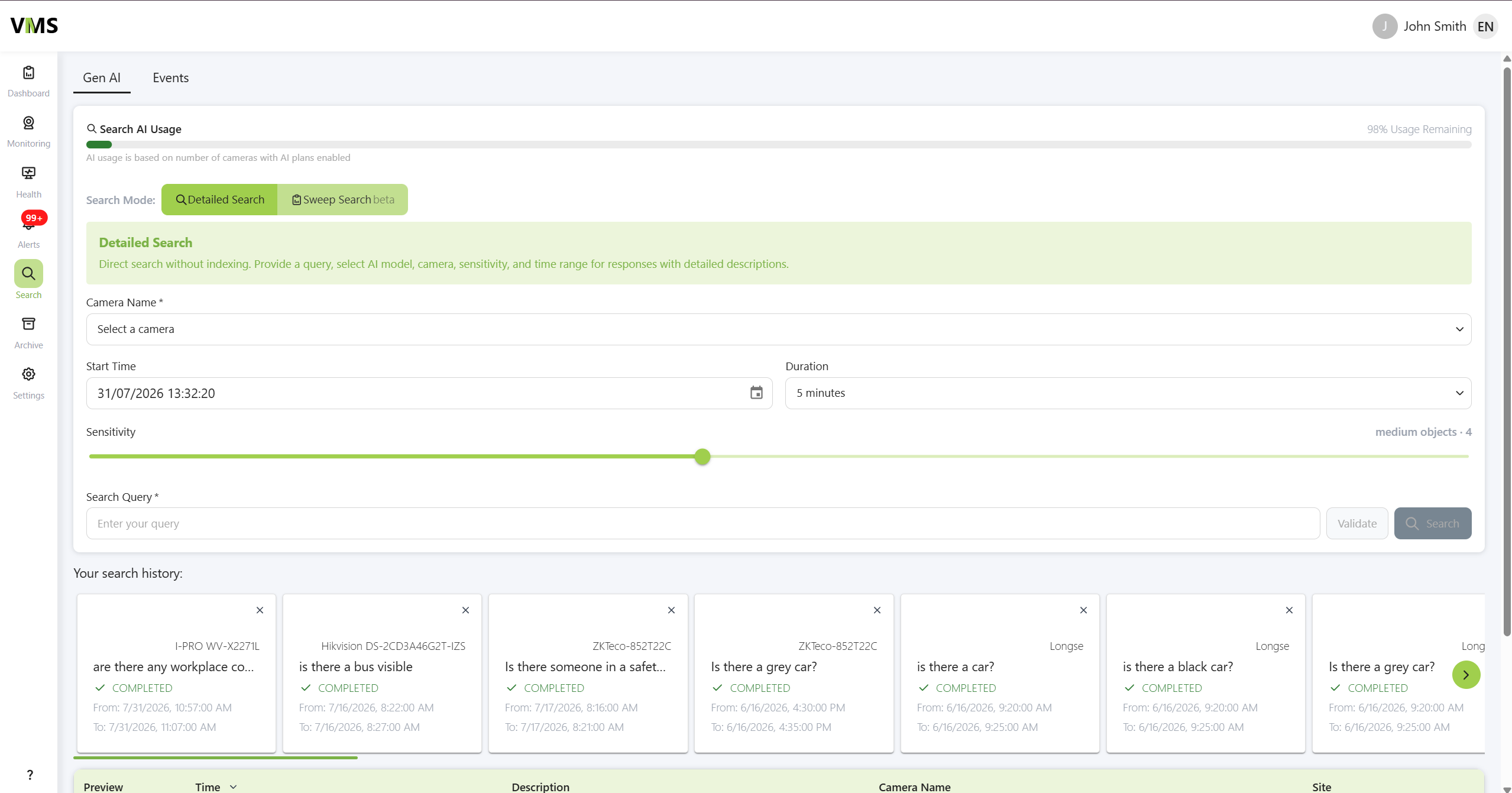
The Search Page enables users to perform video archive searches using advanced Generative AI. With natural language input and customizable parameters, you can efficiently retrieve relevant video segments. This page also has an Events search that allows you to search events from a camera during a specified time frame.

image-20260302-184923.png

AI-Powered Search

The system uses Generative AI to analyze and interpret video content based on your query.

  • In the Search Query field, type a question or prompt in natural language.

    Examples:

    • “Is there a FedEx truck?”

    • “Are there any safety concerns?”

Validation

The validation is used to assist you in making a prompt with the highest chance of giving you expected results. You must validate your prompt before being able to create your search.

How to write a valid prompt:

  • Make sure you phrase the prompt as a yes or no question. When the response is true, or yes, you can provide additional instructions. For example a valid prompt could be “Is any employee on the floor? If yes, count the ratio of employees to customers”

  • Don’t include anything that requires audio input or time ranges into your prompt. For example, an invalid prompt would be “How long has an employee been on the floor” or “Has there been any car sirens?”. Stick to single, visual questions like “Are there any delivery trucks?”.

Invalid prompt - If the prompt is deemed invalid, the system will give a reason and make a suggestion on how this prompt can be improved.

image-20260302-185850.png

Valid prompt - It the prompt is deemed valid, the system will suggest the Advanced, Pro or Lite model based on the complexity of the prompt.

  • “Are any people on the sidewalk?” - Model suggestion for this prompt: Lite

  • “Are there any cars on the road? If yes, count them” - Model suggestion for this prompt: Pro

  • “Is any suspicious activity occurring?” - Model suggestion for this prompt: Advanced

image-20260302-185928.png

AI Model Selection

The validation service will suggest a model to choose for this search either Advanced, Pro or Lite, however this is just a suggestion and you are able to choose any of the 3 models.

  • Advanced - used for more complex reasoning. Rather than simple object recognition, the advanced model is capable of making decisions based on more contextual and inferred information such as “Is there any health concerns?” or “Is there anything that looks like a suspected OSHA violation?”

  • Pro - used for less advanced reasoning, but with more in depth instructions or additional information requires ie. “Are there any cars on the road? If so, list their make and model

  • Lite - used for simple queries and object counting. This model will return less information about the prompt and is best for simple prompts such as “Is there a car in front of the house?”

It is important to note that you can use any model of any validated prompt, but based on the complexity of the prompt and the level of the model you will get different levels of quality in the response.

Camera Selection

Select the appropriate camera by name from the dropdown menu. This limits the search to the chosen video source.

Sensitivity Settings

Adjust the Sensitivity level to control how much motion triggers Generative AI analysis.

  • 1 – High sensitivity (detects small objects or subtle movements)

  • 9 – Low sensitivity (detects only large objects or significant motion)

Choose a setting based on the expected size and movement of the objects you’re searching for.

Time Parameters

  • Start Time: Define when the search should begin in the video archive.

  • Duration: Specify how long the system should search from the start time (e.g., 30 minutes, 2 hours).

image-20260302-192730.png

Viewing Results

Search results will appear as tiles at the bottom of the page. Each tile represents a video segment where potential matches were found.

  • Click on a tile to view a list of detected patterns that match your query.

  • All search results are stored for 1 week and can be revisited within that period.

  • To view result in more detail click the “preview” button. This will open another tab with full size screenshot as well as a player set to the time the result was generated

image-20260302-193207.png

Events search

The events search allows you to search through camera generated events for all or a single camera within a specified time frame.

image-20260302-193719.png

JavaScript errors detected

Please note, these errors can depend on your browser setup.

If this problem persists, please contact our support.