Overview
We develop and maintain Uplink Gateway software packages which run on a router or embedded network appliance running OpenWrt.
The primary OpenWRT devices we support are:
-
GL.iNet GL-MT300N-V2 (Mango)
-
Mikrotik hEX RB750Gr3
Please contact technical support for support of other models.
Setup Guides
The following setup guides are provided for each supported device:
Uplink Gateway Package Installation
-
Download the latest software packages from our downloads page.
-
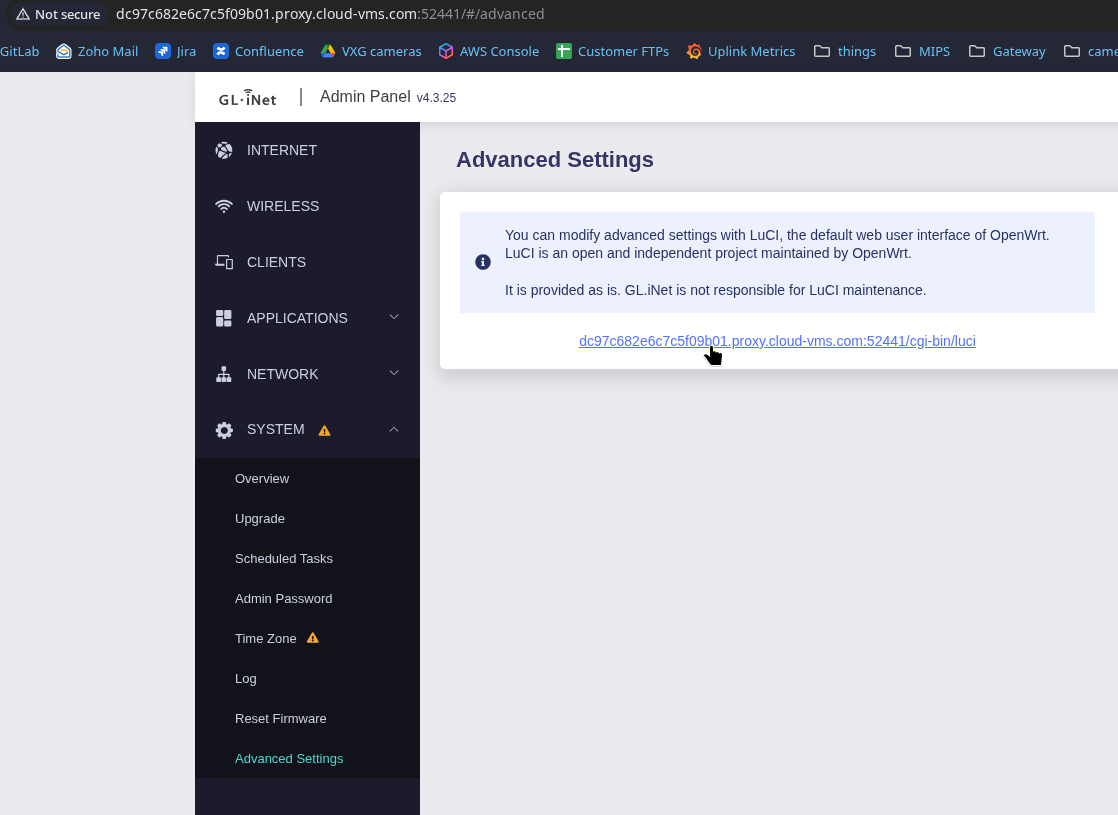
After setup of the OpenWRT device, navigate to the LuCI interface to install packages.
-
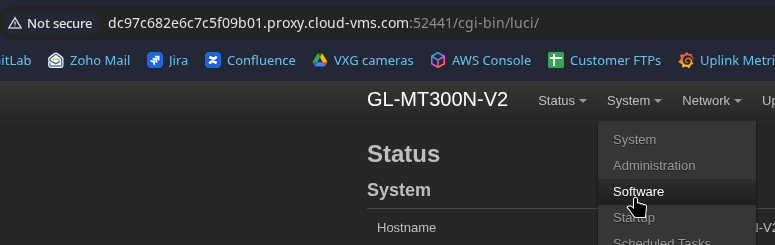
Navigate to the system packages page.
-
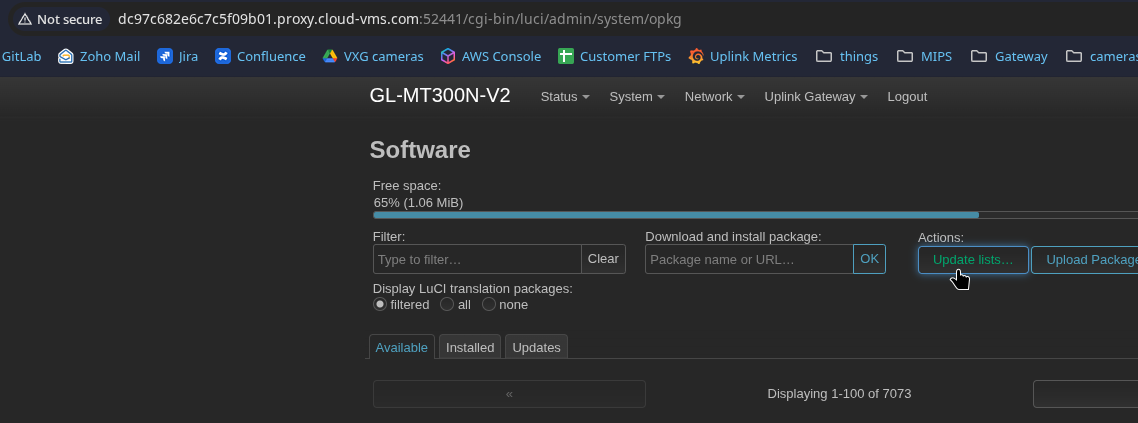
Begin by updating packages to ensure we have the latest list.
-
Choose upload package and select the
uplink-gatewaypackage. Do not install theuplink-gateway-luci-appfirst since it depends on theuplink-gatewaypackage.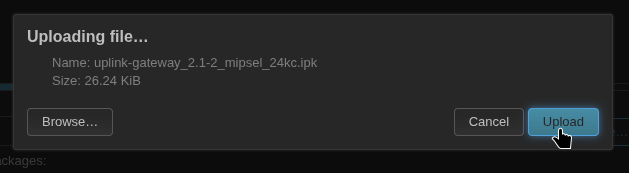
-
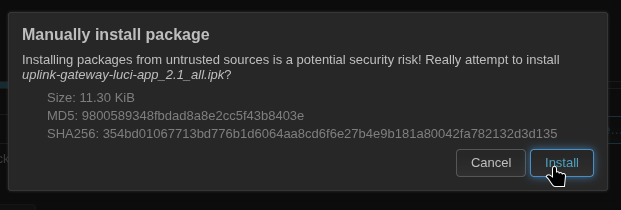
After the
uplink-gatewaypackage is installed, then proceed with installing theuplink-gateway-luci-apppackage.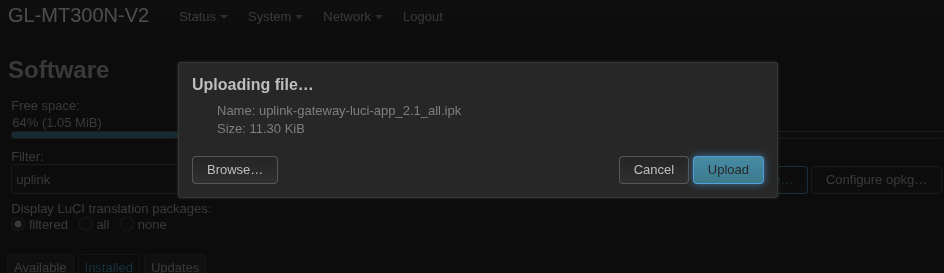
-
Now that the packages are installed, the gateway is now ready to be added to the Cloud VMS platform.
Add Gateway to Cloud VMS
Follow the instructions on Settings -> Cameras page | New Gateway page. You will need the following information:
-
Serial Number (S/N)
-
MAC Address
-
Gateway Username and Password
In the LuCI interface the device information can be found under Uplink Gateway > Gateway Controls. Which is located at the path http://DEVICE-IP/cgi-bin/luci/admin/uplink-gateway/camera-html.
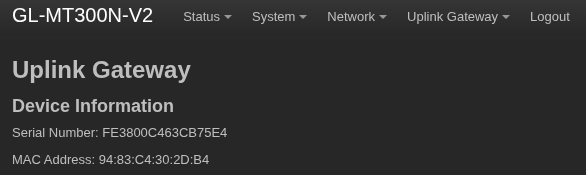
The username is always root, the password is the one you set up in step 3.1.
Update OpenWRT Gateway
Update Using the Gateway’s Webpage
-
Open the gateway’s webpage.

Navigate to the LuCI interface.
-
Navigate to the system packages page.
-
Begin by updating packages to ensure we have the latest list.
-
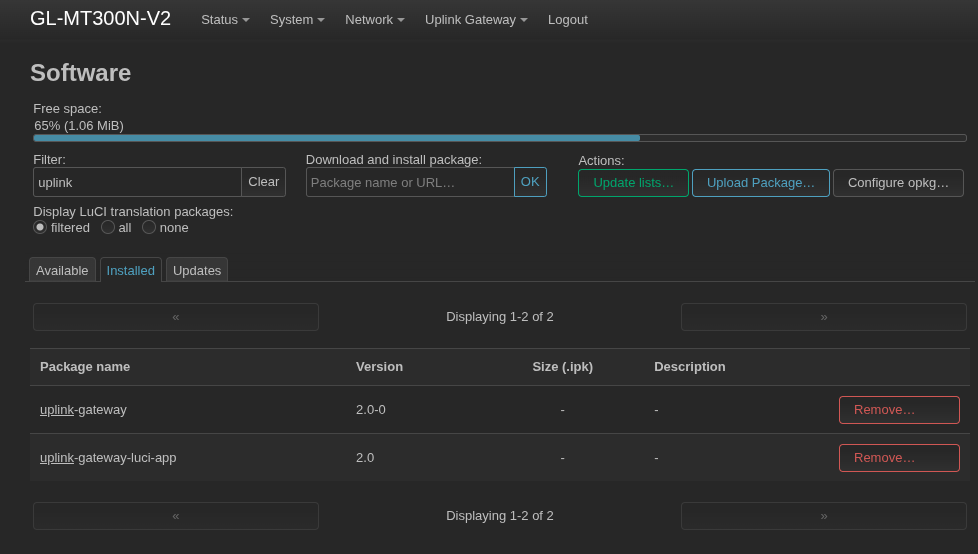
Filter the list by installed packages, then search for “uplink” to show installed gateway packages and versions.
-
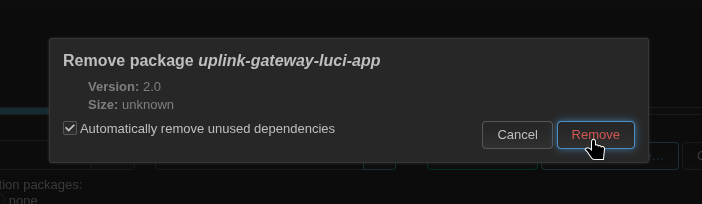
Remove the
luci-apppackage for the gateway. Do not remove the uplink gateway package itself.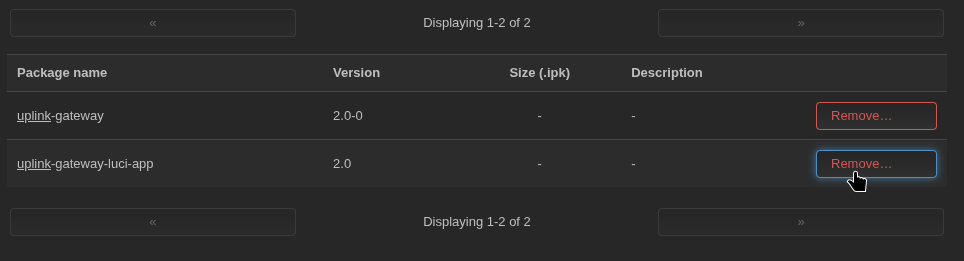
-
Upload the latest
uplink-gatewaypackage to update the gateway.
During this step the connection will be disconnected as the package is updated.

Wait for the gateway to comeback online.
-
Once the connection is re-established, return to the packages page and confirm that the package version has updated.
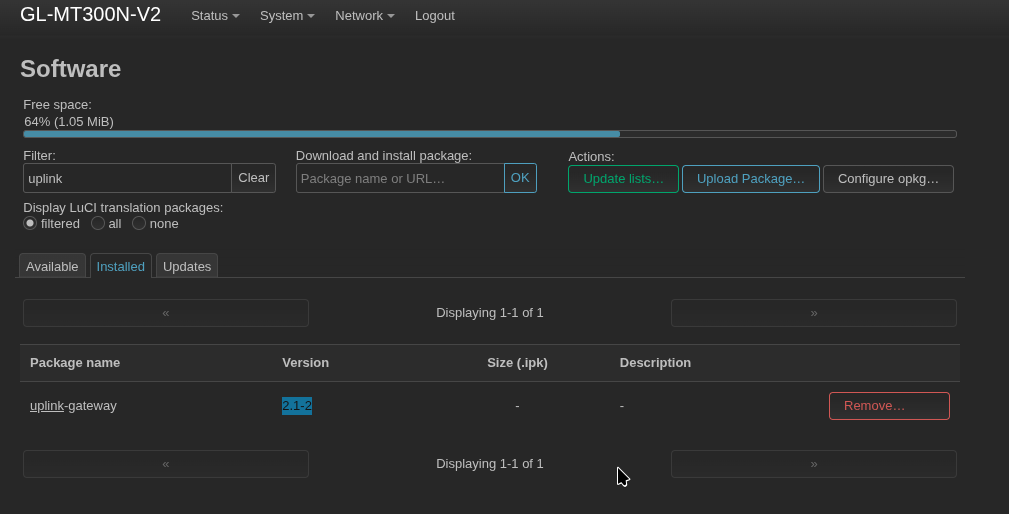
Upload the latest
luci-apppackage.
-
After install is complete, ensure that both packages have the latest version number.
Update using SSH Connection to Gateway
-
After connecting to the gateway via SSH, use wget to fetch the latest package from the downloads page.
wget https://downloads.cloud-vms.com/customer/glinet-mango-gateway-2.1.2.zipWhere
customeris the specific downloads page andglinet-mango-gateway-2.1.2.zipis the latest package for the OpenWRT device. -
Unzip the package.
unzip glinet-mango-gateway-2.1.2.zip -
Update package lists.
opkg update -
List the names of the gateway packages installed.
opkg list-installed | grep "gateway"Example:
root@GL-MT300N-V2:~# opkg list-installed | grep "gateway" uplink-gateway - 2.0-0 uplink-gateway-luci-app - 2.0 -
Remove the
luci-apppackage.opkg remove uplink-gateway-luci-app -
Upgrade the
uplink-gatewaypackage with the new package.opkg install uplink-gateway_2.1-2_mipsel_24kc.ipkIf the ssh connection is through uplink, the connection will be broken and a reconnect is needed.
Example:
root@GL-MT300N-V2:~# opkg install uplink-gateway_2.1-2_mipsel_24kc.ipk Upgrading uplink-gateway on root from 2.0-0 to 2.1-2... Killed uplink process with PID: 20900 Killed uplink process with PID: 21298 /etc/rc.common: line 94: /etc/uplink-gateway/stopagent: not found Stopped uplink agents Configuring uplink-gateway. Starting router agent MAC: 94:83:C4:30:2D:B4 SERIAL: fe3800c463cb75e4 Install complete. Updating database. Database update completed. -
Re-install the
luci-apppackage.opkg install uplink-gateway-luci-app_2.1_all.ipkExample:
root@GL-MT300N-V2:~# opkg install uplink-gateway-luci-app_2.1_all.ipk Installing uplink-gateway-luci-app (2.1) to root... Installing coreutils (9.0-2) to root... Downloading https://fw.gl-inet.com/releases/v22.03.4/packages-4.2/mipsel_24kc/packages/coreutils_9.0-2_mipsel_24kc.ipk Installing coreutils-base64 (9.0-2) to root... Downloading https://fw.gl-inet.com/releases/v22.03.4/packages-4.2/mipsel_24kc/packages/coreutils-base64_9.0-2_mipsel_24kc.ipk Configuring coreutils. Configuring coreutils-base64. Configuring uplink-gateway-luci-app. MAC: 94:83:C4:30:2D:B4 SERIAL: fe3800c463cb75e4 PLATFORM: GLINET Updating database. Database update completed. -
Check that the latest versions are now installed.
opkg list-installed | grep "gateway"Example:
root@GL-MT300N-V2:~# opkg list-installed | grep "gateway"
uplink-gateway - 2.1-2
uplink-gateway-luci-app - 2.1